
Hide Desktop Icons on Mac With One Hotkey: Hide Icons
You start a Zoom share or a screen recording, and every screenshot and download on your desktop is on camera. macOS can hide them, but only from System Settings or a Terminal command that restarts Finder. Hide Icons turns it into one key combination or one click in the menu bar, on every monitor. This piece covers how it does that, the wallpaper tricks, what changed on macOS 27, and when HiddenMe, Desktop Ghost Pro, Desktop Curtain or the built-in toggle is the better pick.

OneTimePay.app
6 min read
How do I hide all my desktop icons on a Mac with one shortcut?
macOS has no built-in hotkey for it: you can only flip a switch in System Settings or run a Terminal command that restarts Finder. Hide Icons, a free menu-bar app, adds a Toggle Desktop Icons shortcut that hides and restores every icon on every monitor in one press. On macOS 27 it needs screen recording permission.
On this page
How do I hide all my desktop icons on a Mac with one shortcut?
In short
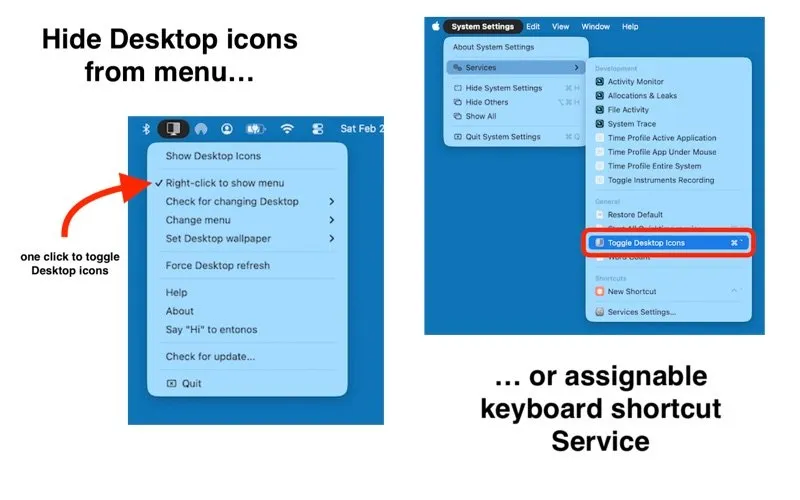
Install Hide Icons from the Mac App Store and it puts an icon in the menu bar. Click it to hide every desktop icon; click again to bring them back. For a keyboard toggle, give its Toggle Desktop Icons service a key combination once, and from then on the same keys hide and show the desktop from any app.
Set the hide desktop icons shortcut
The shortcut is a standard macOS Service, so you set it where macOS keeps all of them:
1. Open System Settings and choose Keyboard.
2. Click Keyboard Shortcuts, then Services.
3. Open General, find Toggle Desktop Icons, and double-click to record your key combination.
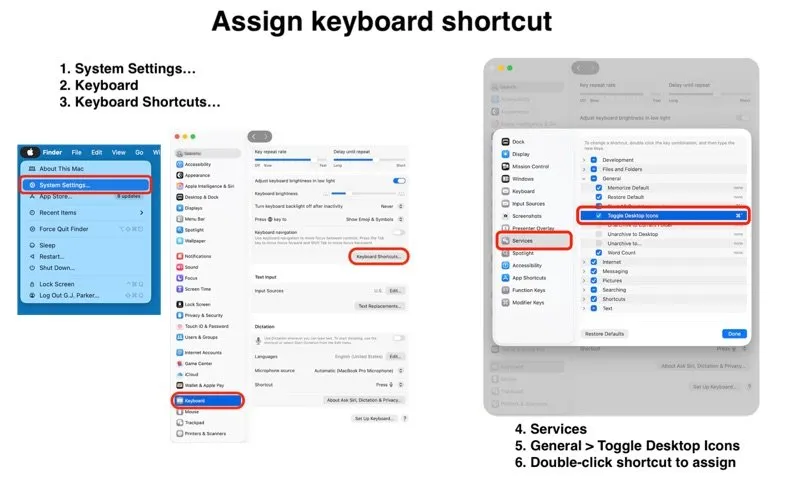
Pick a combination nothing else uses. One 2025 App Store review found the toggle sitting on Shift-Command-D, which Finder uses to open the Desktop folder; the same panel changes it or switches it off. A right-click on the menu-bar icon also toggles the icons, and the app lets you swap which click opens the menu.
How it hides them
Hide Icons does not touch your files or Finder's settings. It takes a snapshot of your wallpaper and lays it over the desktop, so the icons disappear behind a picture of the background they sat on. Nothing restarts, open Finder windows stay put, and your files remain in the Desktop folder. When the app starts, it restores whichever state you left it in.
Wallpapers, Spaces and multiple monitors
In short
Hide Icons works across any number of displays and copes with monitors being plugged in or removed while icons are hidden. It also remembers which wallpaper belongs to which Space, so switching desktops does not flash the wrong picture.
Set Desktop wallpaper: show the real picture, or a solid colour, on one desktop or all of them, without changing your actual wallpaper. Useful for a plain background in a tutorial.
Check for changing Desktop: keeps up with wallpapers that change through the day, such as macOS dynamic wallpapers, at times you choose.
Force Desktop refresh: re-takes the snapshot if the background ever looks stale.
Price
Free, no IAP
Toggle
Hotkey or menu bar
Monitors
Any number
Requires
macOS 10.13+
Size
3.1 MB
Data collected
None (per store)
What changed on macOS 27
In short
macOS 27 changed how apps can read the desktop picture. Hide Icons now needs Screen & System Audio Recording permission to take its wallpaper snapshot. The developer states that the app ignores every video and audio stream and never stores or shares anything from that permission.
Expect permission warnings on macOS 27
macOS shows warnings when an app holds screen recording permission, and the developer says one of them repeats every month. In September 2026 one reviewer got a plain grey desktop right after upgrading; the developer replied that the macOS 27 capture change caused it and that he was working on it with Apple. The latest update (version 2.27, 9 October 2026) lists no functional change, so test it on your Mac before a presentation.
If you would rather not grant that permission, macOS's own toggle in System Settings, Desktop & Dock, Show Items, On Desktop does the job without it, just without a hotkey. The developer suggests the same switch as a workaround, and warns not to run both at once.
Hide Icons vs HiddenMe, Desktop Ghost Pro, Desktop Curtain and the built-in toggle
In short
Hide Icons shares the cheapest spot with macOS itself: both are free. The paid apps cost $1.99 to $4.99 once. What Hide Icons adds over the built-in switch is the hotkey and the wallpaper options; what Desktop Ghost Pro offers in return for $3.99 is hiding without an image overlay, so no screen recording permission.
| App | Price | Hotkey | Multiple monitors | How it hides | Last update |
|---|---|---|---|---|---|
Hide Icons this one this article | Free, no IAP | Yes (macOS Service) | Yes, any number | Wallpaper snapshot overlay | October 2026 |
macOS built in Desktop & Dock / Terminal | Free | No | Yes | Finder stops drawing icons | Ships with macOS |
HiddenMe Mac App Store | $1.99 | Yes | $1.99 Pro upgrade | Not stated | October 2022 |
Desktop Ghost Pro Mac App Store | $3.99 ($1.99 basic) | Yes | Not stated | Hides files, no image overlay | May 2026 |
Desktop Curtain Many Tricks | $4.99 | Yes | One or all monitors | Image curtain, can cover windows | February 2025 |
A HiddenMe alternative that stays free
HiddenMe was the classic answer for years, but its last update was October 2022 and multi-display support is a paid upgrade. Hide Icons covers the same one-click job plus several monitors at no cost, and was last updated in October 2026. If you also need to cover open windows, Desktop Curtain is the tool built for that.
Who Hide Icons suits, and who should skip it
In short
It suits anyone who presents, screen shares, records tutorials or takes marketing screenshots on a Mac several times a week and wants the desktop clean in one keystroke. Skip it if you hide icons once a month, where the System Settings switch is enough, or if you will not grant screen recording permission on macOS 27.
Few store ratings: the US Mac App Store has too few ratings to show an average, so lean on your own test.
Source code: the developer says the source is on GitHub, but we found no public repository on 2 November 2026, so treat it as a closed app.
Overlay, not a setting: it covers the icons with a picture, so the files still show in Finder's Desktop folder and in Spotlight, and after a wallpaper change you may need Force Desktop refresh.
Before your next call
Install it, assign Toggle Desktop Icons a shortcut you never use elsewhere, and toggle it once on each monitor. On macOS 27, grant the permission and check the background looks right before you share your screen. Facts were verified on 2 November 2026.
Frequently asked questions
Is Hide Icons really free, with no in-app purchases?
Yes. On 2 November 2026 the Mac App Store lists Hide Icons as free with no in-app purchases and no ads, and the developer reports that it collects no data. There is no Pro tier to unlock.
Does Hide Icons work on macOS 27?
Yes, with a catch. On macOS 27 it needs Screen & System Audio Recording permission to take the snapshot of your wallpaper it lays over the icons, and macOS shows warnings about that permission, one of them monthly. The developer says the app ignores all video and audio and stores nothing. One September 2026 review reported a grey desktop right after upgrading.
Does hiding the icons move or delete my files?
No. Hide Icons covers the desktop with a picture of your wallpaper; the files stay in your Desktop folder, and Finder still shows them under Desktop in its sidebar.
Can I change or turn off the Hide Icons shortcut?
Yes. The shortcut is a macOS Service. Open System Settings, Keyboard, Keyboard Shortcuts, Services, General, find Toggle Desktop Icons, and set a new key combination or untick it.
Is there a free way to hide desktop icons on a Mac without an app?
Yes, two. In System Settings, Desktop & Dock, turn off Show Items On Desktop. Or run defaults write com.apple.finder CreateDesktop false && killall Finder in Terminal, which restarts Finder. Neither gives you a one-key toggle.
Is Hide Icons the cheapest desktop icon hider?
It ties for cheapest with the built-in toggle, since both are free. HiddenMe and Desktop Ghost cost $1.99, Desktop Ghost Pro $3.99 and Desktop Curtain $4.99. Desktop Ghost Pro hides files without covering the desktop with an image, which matters if you would rather not grant screen recording permission on macOS 27.
Sources
- 1
Hide Icons on the Mac App Store
Free, no in-app purchases; version 2.27 (9 October 2026); first released 30 April 2021; 3.1 MB; macOS 10.13 or later; Data Not Collected; the macOS 27 Screen & System Audio Recording note; version history; developer replies on the shortcut and macOS 27; too few ratings for an average.
- 2
Change Desktop & Dock settings (Apple macOS User Guide)
Show Items: On Desktop and In Stage Manager toggles.
- 3
How to Hide All Desktop Icons on Your Mac (Hongkiat)
The defaults write com.apple.finder CreateDesktop Terminal commands and the Automator shortcut route.
- 4
$1.99 plus a $1.99 Pro in-app purchase for multiple displays; global hotkey; version 3.1 (10 October 2022); macOS 10.15 or later.
- 5
Desktop Ghost Pro on the Mac App Store
$3.99; customizable global hotkey; hides files without covering the desktop with an image; macOS 11 or later. The basic Desktop Ghost is $1.99.
- 6
Desktop Curtain on the Mac App Store
$4.99 from Many Tricks; covers the desktop (and optionally other windows) with an image; one or all monitors; version 3.2 (12 February 2025).
- 7
Basic: $35 one-time with one year of updates; Pro: $10 per user a month, billed annually.
- 8
Screen recording option: “Hide clutter from your desktop when recording”.

Hide Icons
Clear your Mac desktop icons with a hotkey for clean screenshots
macOS
More apps worth a look: browse the desktop